
Image Screenshot
Loading templates...Create with Image Screenshot
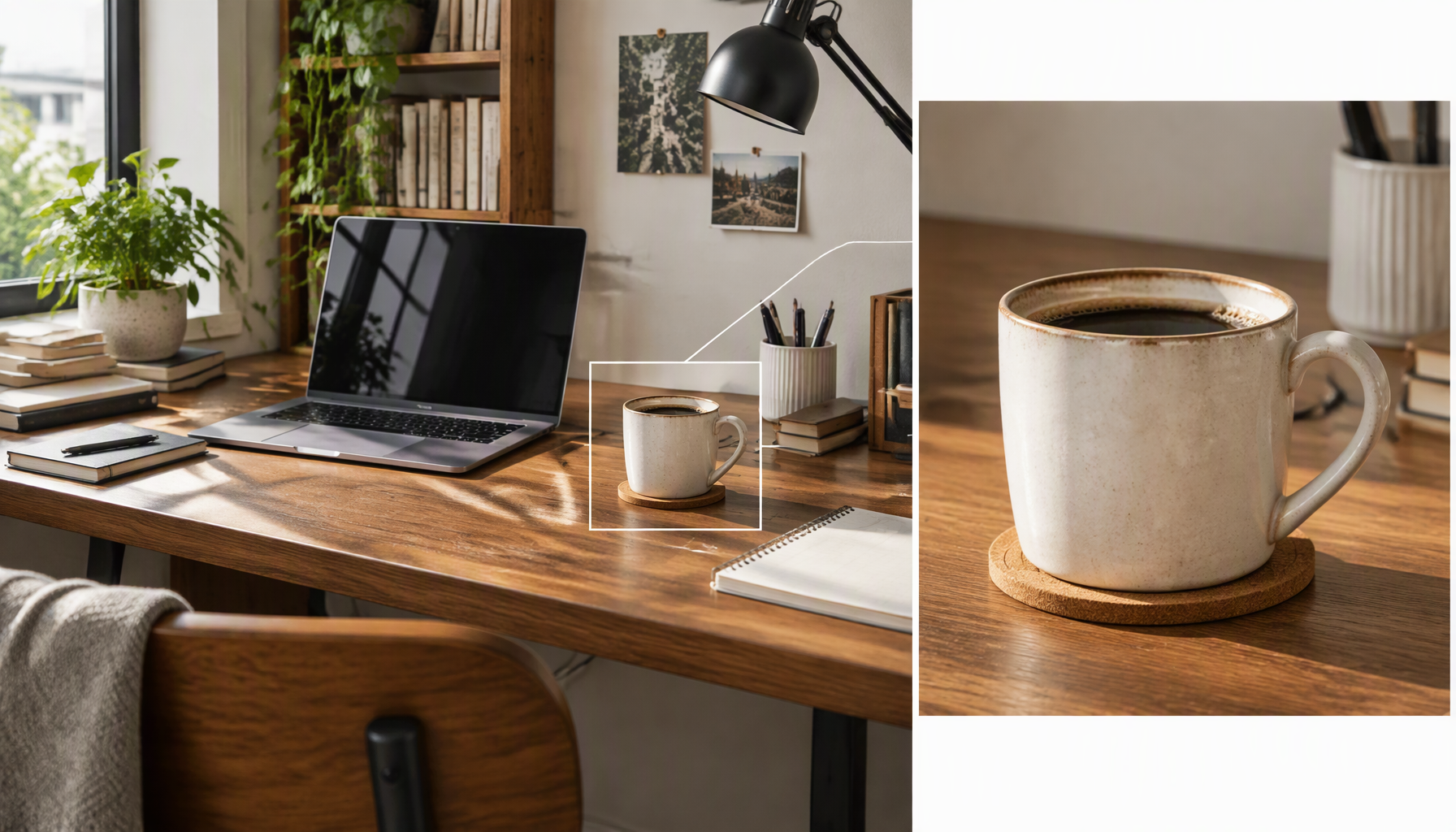
Crop the desired areas from existing images, then use Reelflow to organize product details, close-ups of people, and design references, making the image content more focused and easier to use later on.
Simple source input
Retain useful identity, layout, or motion from the source while changing its visual treatment.
Useful creative controls
Choose the target style, transformation strength, and format to guide how far the result changes.
Output workflow
Create a restyled or reformatted asset that remains connected to the original subject.
Three steps from source to result
Step 1
Upload a clear JPEG, PNG, or WebP image that you have permission to use; avoid tiny, heavily compressed sources.
Step 2
Crop the desired areas from existing images, then use Reelflow to organize product details, close-ups of people, and design references, making the image content more focused and easier to use later on.
Step 3
Inspect the full-resolution result for edges, identity, text, and product accuracy, then download it or create another version.
Frequently asked questions
What should I upload or enter for Image Screenshot?
Upload a clear JPEG, PNG, or WebP image that you have permission to use; avoid tiny, heavily compressed sources.
What happens after I start Image Screenshot?
Crop the desired areas from existing images, then use Reelflow to organize product details, close-ups of people, and design references, making the image content more focused and easier to use later on. Choose the available settings, generate a result, and inspect it before downloading or publishing.
What should I check before using the result?
Strong style changes can alter faces, logos, fine patterns, or fast motion. Use short, stable footage and review continuity.
How is Image Screenshot different from related tools?
Crop the desired areas from existing images, then use Reelflow to organize product details, close-ups of people, and design references, making the image content more focused and easier to use later on. This workflow retains the source subject or motion while changing a specific visual property.
How is generation billed?
Generation may consume credits based on the selected model and settings. Available credits and trial benefits depend on your current plan and account.
Start creating with Image Screenshot
Crop the desired areas from existing images, then use Reelflow to organize product details, close-ups of people, and design references, making the image content more focused and easier to use later on.