
AI Video Editing
Loading templates...Create with AI Video Editing
Starting with existing footage, describe the visual elements you’d like to adjust, then use Reelflow to explore changes in scenes, elements, and visual atmosphere, giving your existing shots new creative possibilities.
Simple source input
Retain useful identity, layout, or motion from the source while changing its visual treatment.
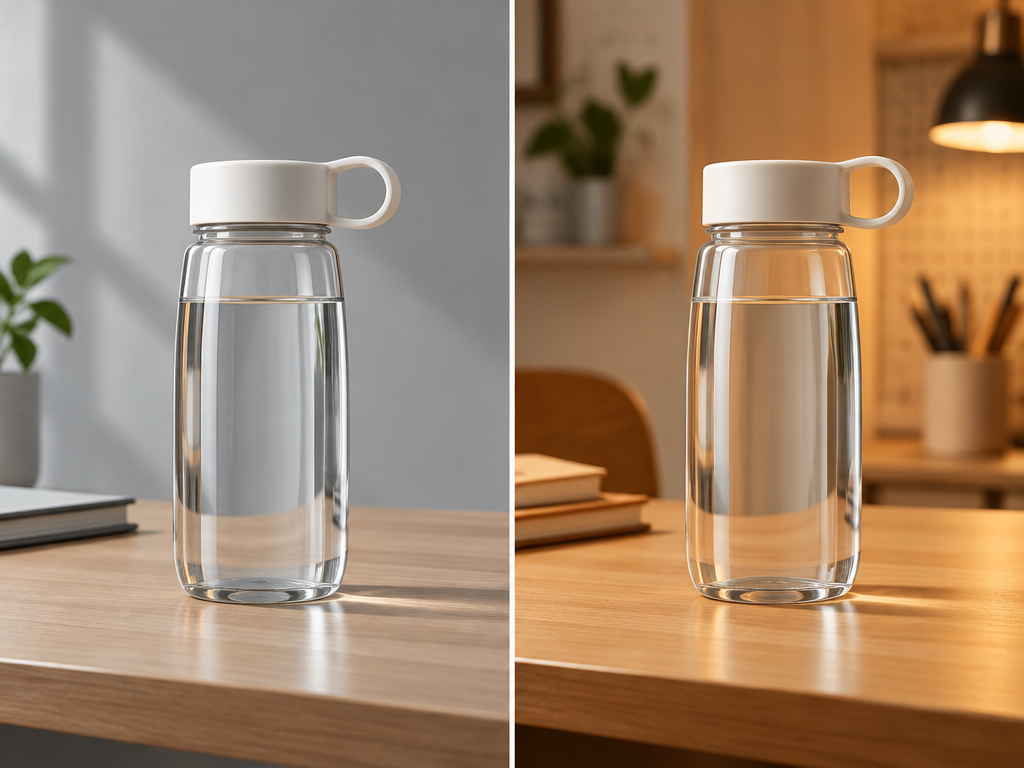
Useful creative controls
Choose the target style, transformation strength, and format to guide how far the result changes.
Output workflow
Create a restyled or reformatted asset that remains connected to the original subject.
Three steps from source to result
Step 1
Upload a supported video with a clearly visible subject, stable framing, and as little prior compression as possible.
Step 2
Starting with existing footage, describe the visual elements you’d like to adjust, then use Reelflow to explore changes in scenes, elements, and visual atmosphere, giving your existing shots new creative possibilities.
Step 3
Preview the full clip, check motion, edges, text, and subject consistency, then download it or revise the settings.
Frequently asked questions
What should I upload or enter for AI Video Editing?
Upload a supported video with a clearly visible subject, stable framing, and as little prior compression as possible.
What happens after I start AI Video Editing?
Starting with existing footage, describe the visual elements you’d like to adjust, then use Reelflow to explore changes in scenes, elements, and visual atmosphere, giving your existing shots new creative possibilities. Choose the available settings, generate a result, and inspect it before downloading or publishing.
What should I check before using the result?
Text that covers moving subjects or large areas may not be reconstructed cleanly in every frame. Review the complete export for flicker and artifacts.
How is AI Video Editing different from related tools?
Starting with existing footage, describe the visual elements you’d like to adjust, then use Reelflow to explore changes in scenes, elements, and visual atmosphere, giving your existing shots new creative possibilities. This workflow retains the source subject or motion while changing a specific visual property.
How is generation billed?
Generation may consume credits based on the selected model and settings. Available credits and trial benefits depend on your current plan and account.
Start creating with AI Video Editing
Starting with existing footage, describe the visual elements you’d like to adjust, then use Reelflow to explore changes in scenes, elements, and visual atmosphere, giving your existing shots new creative possibilities.