
Undo cropping and enlarge the image (enlarge image)
Loading templates...Create with Undo cropping and enlarge the image (enlarge image)
Use Reelflow to add background elements around the original image, creating more space for banners, covers, and layouts with different aspect ratios, and opening up new compositional possibilities for photos that were cropped too tightly.
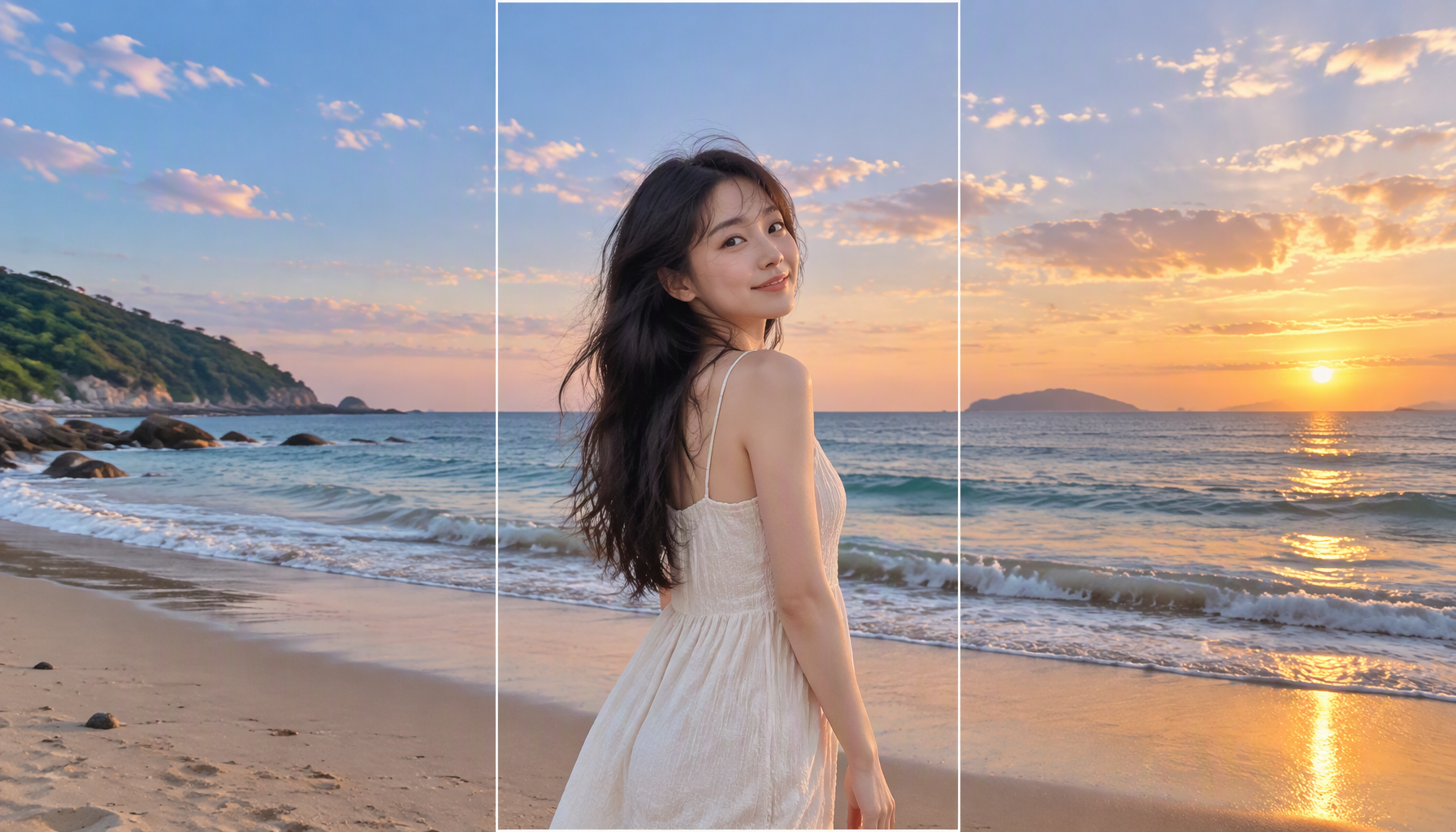
Simple source input
Start from a focused prompt, reference image, or product asset that defines the creative goal.
Useful creative controls
Direct style, composition, motion, language, and format with controls suited to generated content.
Output workflow
Produce an original visual asset ready for campaigns, concepts, social content, or iteration.
Three steps from source to result
Step 1
Upload a clear JPEG, PNG, or WebP image that you have permission to use; avoid tiny, heavily compressed sources.
Step 2
Use Reelflow to add background elements around the original image, creating more space for banners, covers, and layouts with different aspect ratios, and opening up new compositional possibilities for photos that were cropped too tightly.
Step 3
Inspect the full-resolution result for edges, identity, text, and product accuracy, then download it or create another version.
Frequently asked questions
What should I upload or enter for Undo cropping and enlarge the image (enlarge image)?
Upload a clear JPEG, PNG, or WebP image that you have permission to use; avoid tiny, heavily compressed sources.
What happens after I start Undo cropping and enlarge the image (enlarge image)?
Use Reelflow to add background elements around the original image, creating more space for banners, covers, and layouts with different aspect ratios, and opening up new compositional possibilities for photos that were cropped too tightly. Choose the available settings, generate a result, and inspect it before downloading or publishing.
What should I check before using the result?
Generated layouts, anatomy, logos, and written text may be inaccurate. Treat the result as a draft until those details are checked.
How is Undo cropping and enlarge the image (enlarge image) different from related tools?
Use Reelflow to add background elements around the original image, creating more space for banners, covers, and layouts with different aspect ratios, and opening up new compositional possibilities for photos that were cropped too tightly. This workflow creates new visual content from a brief or reference instead of applying a fixed filter.
How is generation billed?
Generation may consume credits based on the selected model and settings. Available credits and trial benefits depend on your current plan and account.
Start creating with Undo cropping and enlarge the image (enlarge image)
Use Reelflow to add background elements around the original image, creating more space for banners, covers, and layouts with different aspect ratios, and opening up new compositional possibilities for photos that were cropped too tightly.